Windows VPN: How to Set One Up and Choose a Provider
Learn what Windows VPN settings do, how to connect, and how to choose a VPN service that fits your needs.
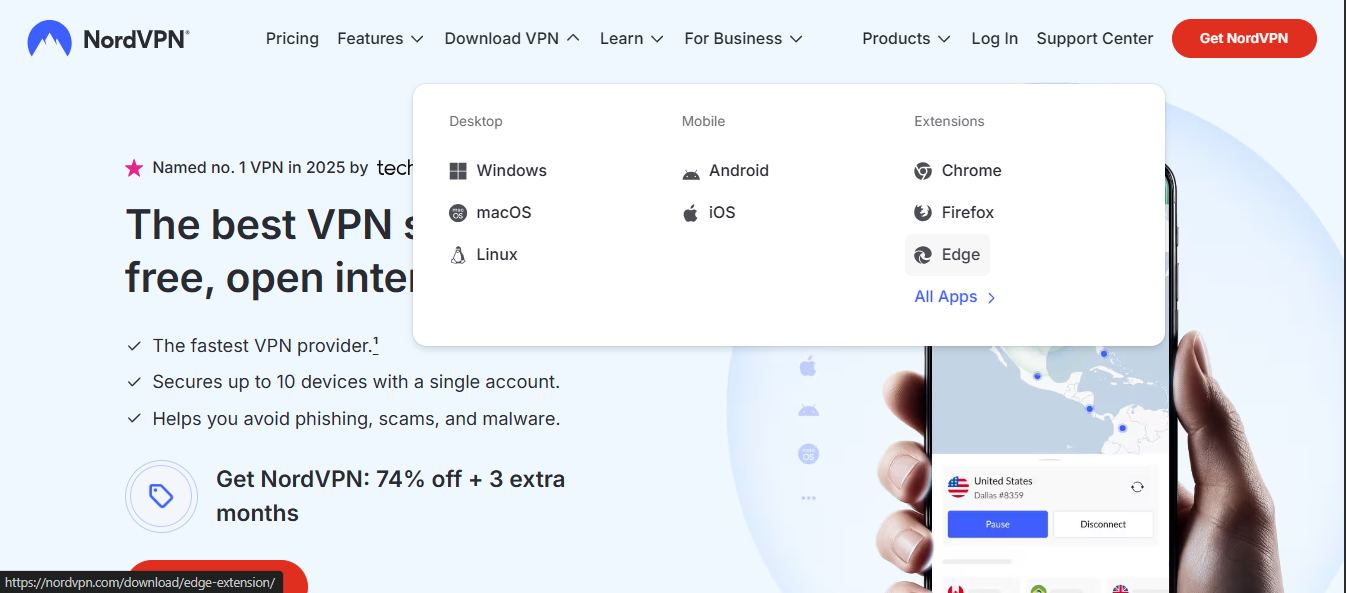
A Windows VPN can help protect your internet traffic on untrusted networks or connect you to a work or school network. Windows has built-in settings for VPN connections, but those settings are not, by themselves, a VPN service. To connect, you typically need a VPN provider, an organization’s account, or connection details from an administrator.
Editor's pick: NordVPN — fast, secure VPN — Strong encryption, a no-logs policy and apps for every device. 30-day money-back guarantee. Get NordVPN →
Compare Windows VPN setup options
| Option | Provider app | Windows settings | Best for | Main limitation |
|---|---|---|---|---|
| VPN provider app | Yes | Usually not needed | Most users | Requires installing an app |
| Windows built-in VPN | No | Yes | Manual setup | Requires compatible server details |
| Work or school VPN | Sometimes | Yes, if supported | Organization access | Setup depends on administrator |
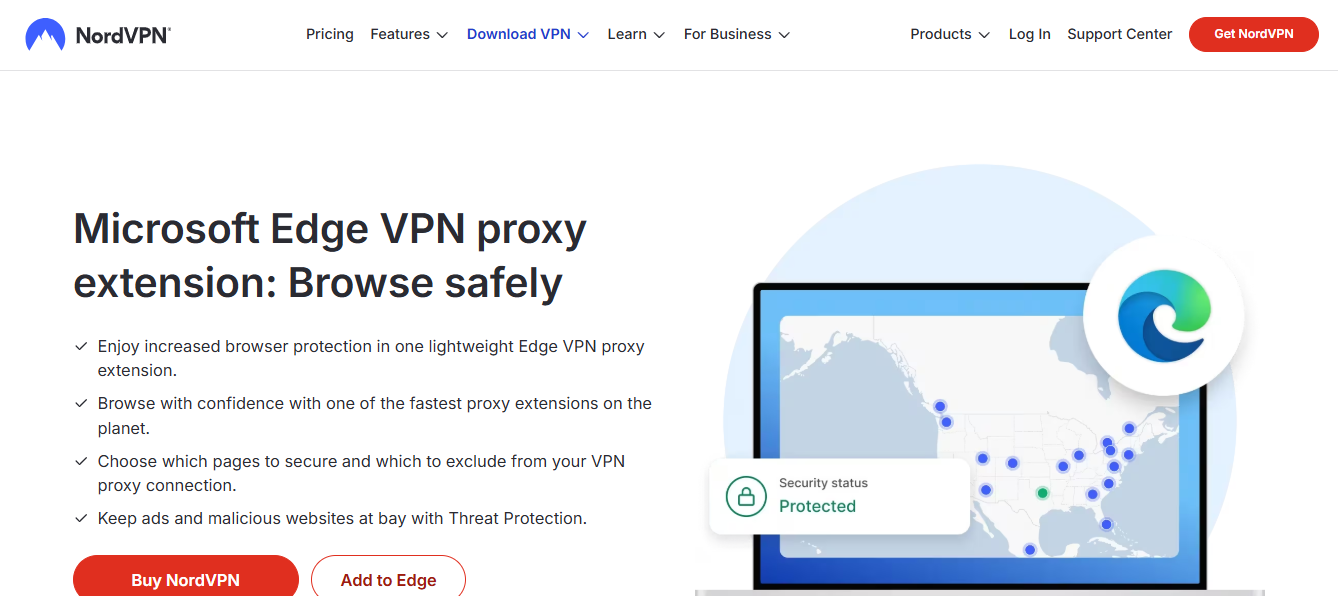
| VPN browser extension | Browser only | No | Browser traffic | Does not cover all device traffic |
| No VPN | No | No | No VPN connection needed | Traffic is not protected by a VPN |
Compiled November 2026; check the provider's site for current details.
| VPN | Obfuscation | From / month | Plan | Free plan | Refund | Alipay | UnionPay | Crypto | Website opens in China | Trustpilot | |
|---|---|---|---|---|---|---|---|---|---|---|---|
 Proton VPN | Turn on manually Stealth, free plan too | $2.99/mo | 12 months: $35.88 | Yes | 30 days | ✗ | ✗ | ✗ | ✓ | ✗ Blocked | 2.1/5 (1,040 reviews) |
 NordVPN | Turn on manually Obfuscated Servers / NordWhisper | $3.49/mo | 27 months: $94.23 | No | 30 days | ? | ✗ | ✓ | ✓ | ✗ Blocked | 4.2/5 (51,628 reviews) |
 ZoogVPN | Turn on manually Shadow | $2.49/mo | 27 months: $59.99 | Yes | 7 days | ✓ | ✓ | ✓ | ✓ | Official site blocked; our special link opens (4.4 s) | 4.2/5 (195 reviews) |
 ExpressVPN | ✓ On by default all servers | $3.00/mo | 28 months: $84 | No | 30 days | ✗ | ✗ | ✓ | ✗ | ✗ Blocked | 4.4/5 (29,706 reviews) |
 Surfshark | ✓ On by default Camouflage, with OpenVPN | See site | See site | No | 30 days | ✗ | ✗ | ✗ | ✓ | ✗ Blocked | 4.3/5 (31,823 reviews) |
 Astrill VPN | Turn on manually StealthVPN / OpenWeb | $12.50/mo | 24 months: $300 | No | See site | ✗ | ✗ | ✗ | ✓ | ✗ Blocked | 1.3/5 (110 reviews) |
 Private Internet Access | Turn on manually Shadowsocks, OpenVPN only | $2.03/mo | 40 months: $81.2 | No | 30 days | ✗ | ✗ | ✗ | ✗ | ✗ Blocked | 4.2/5 (11,033 reviews) |
 CyberGhost | Turn on manually selected servers | $2.19/mo | 28 months: $61.32 | No | 45 days | ✗ | ✗ | ✗ | ✓ | ✗ Blocked | 4.0/5 (24,178 reviews) |
 PureVPN | Turn on manually switch to OpenVPN | $1.69/mo | 60 months: $101.55 | No | 31 days | ? | ? | ✗ | ✓ | ✗ Blocked | 4.4/5 (17,994 reviews) |
 AdGuard VPN | ✓ On by default TrustTunnel | $2.99/mo | 24 months: $71.76 | Yes | 30 days | ✓ | ✗ | ✓ | ✓ | Official site blocked; our special link opens (3.7 s) | 4.3/5 (290 reviews) |
 Mullvad | Turn on manually QUIC / Shadowsocks / LWO | $5.61/mo | €5/mo | No | 14 days | ✗ | ✗ | ✗ | ✓ | ✗ Blocked | 3.2/5 (192 reviews) |
 Windscribe | Turn on manually Stealth / WStunnel | $5.75/mo | 12 months: $69 | Yes | See site | ✗ | ✗ | ✗ | ✓ | ✗ Blocked | 4.7/5 (13,355 reviews) |
 StrongVPN | Turn on manually Scramble, OpenVPN TCP | See site | See site | No | 30 days | ✓ | ✗ | ✗ | ✗ | ✗ Blocked | 4.4/5 (2,695 reviews) |
 LightXtreme 闪连 | Not listed | $7.08/mo | 12 months: $84.99 | Yes | 30 days | ✓ | ✓ | ✓ | ✓ | ✓ Yes (3.5 s) | No page |
Prices checked 2026-11-10 on each vendor's pricing page (cheapest long plan, USD). Check the vendor's checkout for the final price.
Obfuscation checked 2026-11-14 on each vendor's site and help center: "on by default" = nothing to set; "turn on manually" = switch protocol or mode in settings; "not listed" = the vendor describes no obfuscation.
Payment methods checked 2026-11-10 on each vendor's payment pages: all 14 take cards and PayPal; ✗ = not listed, ? = the vendor's own pages disagree.
China access: whether the official website opens from mainland China networks (tests the website only, not the VPN connection). Last checked 2026-11-18 01:02 Beijing time.
Trustpilot score and review count checked 2026-11-10.
Does Windows have a built-in VPN?
Windows includes a VPN connection tool in Settings. It lets you add and manage connections, but it does not automatically provide a VPN subscription, server network, or internet privacy service. You must get connection details from a VPN provider or your organization.
This distinction matters when you search for a “Windows VPN.” You may mean either:
- Windows’ built-in connection settings, which connect to a compatible VPN server.
- A VPN provider’s app, which typically helps you sign in, choose a server, and manage the connection.
- A work or school VPN, configured with details provided by an IT administrator.
A VPN can route your device’s traffic through a VPN server. It can help protect traffic on public Wi-Fi and may change the IP address websites see. It does not make you anonymous, prevent every form of tracking, or guarantee safety from malware and phishing.
How to connect to a VPN in Windows
If you have the server and sign-in details, you can add a connection using Windows Settings. The exact options can vary by Windows version and the VPN information you were given. Free VPN for Microsoft Edge: What Works and What to Know
- Open Settings.
- Select Network & internet > VPN.
- Select Add VPN or Add a VPN connection.
- Enter the connection information supplied by your VPN provider or administrator, including the VPN type and sign-in method.
- Save the connection, then select it and choose Connect.
You may need to enter a server address, account details, or other configuration information. Don’t guess these settings: use your provider’s instructions or ask your organization’s IT team. Microsoft’s Windows support guidance also outlines adding a connection from the VPN page in Settings.
Once configured, you can return to the VPN page to connect or disconnect. If you’re using a commercial service, its Windows app may be simpler to set up than manual configuration and may offer additional settings.
Decide between a VPN app and Windows built-in settings
| Consideration | VPN app | Windows built-in settings | What to check |
|---|---|---|---|
| Setup | Guided by provider | Enter connection details manually | Available setup instructions |
| Provider servers | Often listed in the app | Add compatible server details | Server and protocol support |
| Server switching | Usually handled in the app | Change connection settings manually | Ease of changing locations |
| Connection controls | Provider-dependent | Windows connection controls | Features you need |
| Account and subscription | Provider-dependent | Still requires a VPN service | Plan and account requirements |
| Troubleshooting | Provider support may help | May require manual diagnosis | Support options |
Compiled November 2026; check the provider's site for current details. Edge Secure Network VPN Review: What It Protects, and What It Doesn’t
Built-in settings or a VPN app?
Both options can connect your Windows device to a VPN, but they serve different needs. A provider’s app may manage account authentication and server selection, while Windows settings let you enter a connection manually.
| Option | Best suited to | What you need |
|---|---|---|
| Windows VPN settings | Manually adding a compatible connection | Server and login details from a provider or administrator |
| Provider’s Windows app | Connecting to a commercial VPN service | The provider’s app and an account or plan, depending on its terms |
| Work or school setup | Accessing an organization’s network | Instructions and credentials from the organization |
The built-in settings do not replace a VPN provider. If your goal is to use a commercial VPN for everyday browsing, start with the provider’s official Windows download page and follow its setup instructions.
How to choose a Windows VPN
Before installing a VPN, consider what you want it to do. A service for accessing a workplace network has different requirements from one intended for everyday browsing.
Check the following before you sign up or install an app: FortiClient VPN Windows 11: Install, Set Up, and Troubleshoot
- Privacy policy: Understand what information the provider collects and how it handles connection data.
- Security features: Review the protections and connection controls the service offers. Don’t assume every VPN provides the same features.
- Windows compatibility: Confirm that the app supports your version of Windows and is downloaded from the provider’s official site or a trusted app source.
- Ease of use: Look for clear setup instructions and a straightforward way to connect and disconnect.
- Cost and limits: Check the provider’s current terms, including any limits on a free plan, before relying on it.
- Support: See how to get help if setup fails or the connection drops.
There are Windows downloads from providers such as Proton VPN and NordVPN, as well as services that advertise free Windows VPN options. Availability and plan terms can change, so check each provider’s current details rather than assuming that “free” means unlimited or that every service offers the same protections.
Common questions about Windows VPNs
Is a VPN free for Windows?
Windows’ built-in VPN settings do not charge a separate fee, but they also do not provide a VPN service. A provider may offer a free plan, a paid plan, or both. Check its current terms, limits, privacy policy, and features before choosing.
Can a VPN make me completely private?
No. A VPN changes how your internet traffic is routed, but it does not stop all tracking. Websites may still identify you through account sign-ins, cookies, or other signals. A VPN also does not replace updated software, strong passwords, or caution with suspicious links.
Can law enforcement see through a VPN?
A VPN is not a guarantee that activity is invisible. What information may be available depends on factors such as the service’s practices, records, and applicable legal requirements. Avoid choosing a VPN based only on claims of complete anonymity. Review its privacy information and make sure it suits your needs. VPN for Edge: How to Choose and Use One
Why won’t my Windows VPN connect?
Check that your internet connection is working and that the server address, VPN type, and sign-in details are correct. If you use a provider’s app, check its support guidance and app settings. For a work or school VPN, contact the administrator, since access or configuration may be managed by the organization.
Checklist for choosing a Windows VPN
| Decision factor | What to look for | Why it matters | Verify before choosing |
|---|---|---|---|
| Windows compatibility | App supports your Windows version | Helps ensure the VPN can run | Provider system requirements |
| Setup method | App or supported manual configuration | Determines setup effort | Installation and setup guides |
| Server access | Locations that meet your needs | Affects where you can connect | Available server locations |
| Privacy practices | Clear privacy policy | Explains how data is handled | Logging and data-retention terms |
| Security features | Clearly described protections | Helps assess connection security | Supported protocols and safeguards |
| Performance | Service suited to your activities | VPNs can affect connection speed | Trial, refund, or testing options |
| Support | Accessible help resources | Useful when setup or connection fails | Support channels and hours |
| Cost | Clear pricing and renewal terms | Helps avoid unexpected charges | Subscription and cancellation terms |
Compiled November 2026; check the provider's site for current details.
Recommendation
For workplace access, use the connection details and instructions from your IT administrator. For a commercial VPN, choose a provider based on its privacy practices, security features, Windows support, and current plan terms, then install its official app if available. Use Windows’ built-in VPN settings when you have the exact configuration details needed to add a connection manually. EqualVPN: What It Offers and Who It May Suit