Free VPN for Microsoft Edge: What Works and What to Know
Learn how Edge’s built-in VPN and browser extensions differ, how to turn on protection, and what a free VPN can and cannot do.
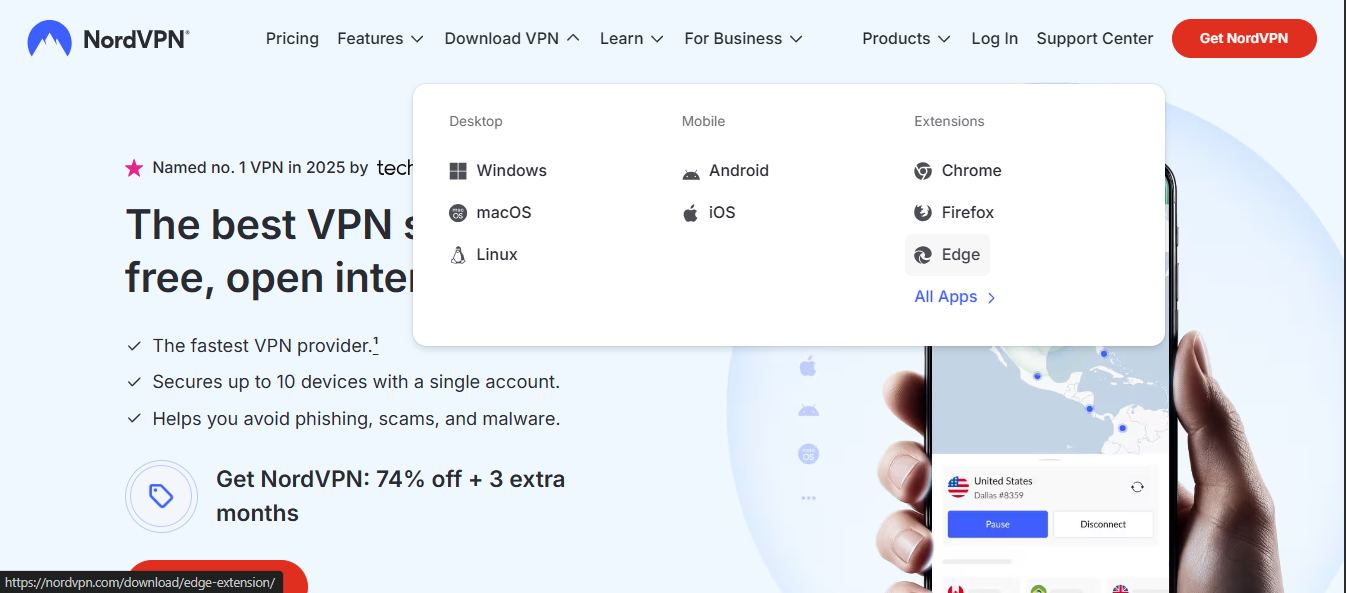
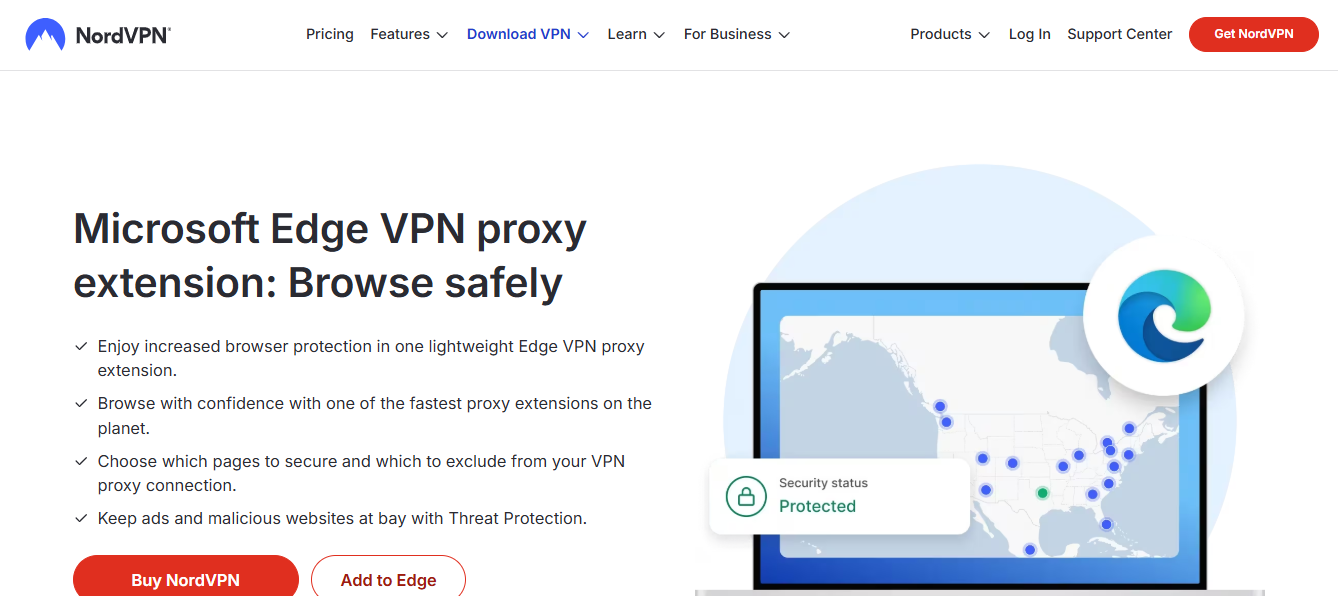
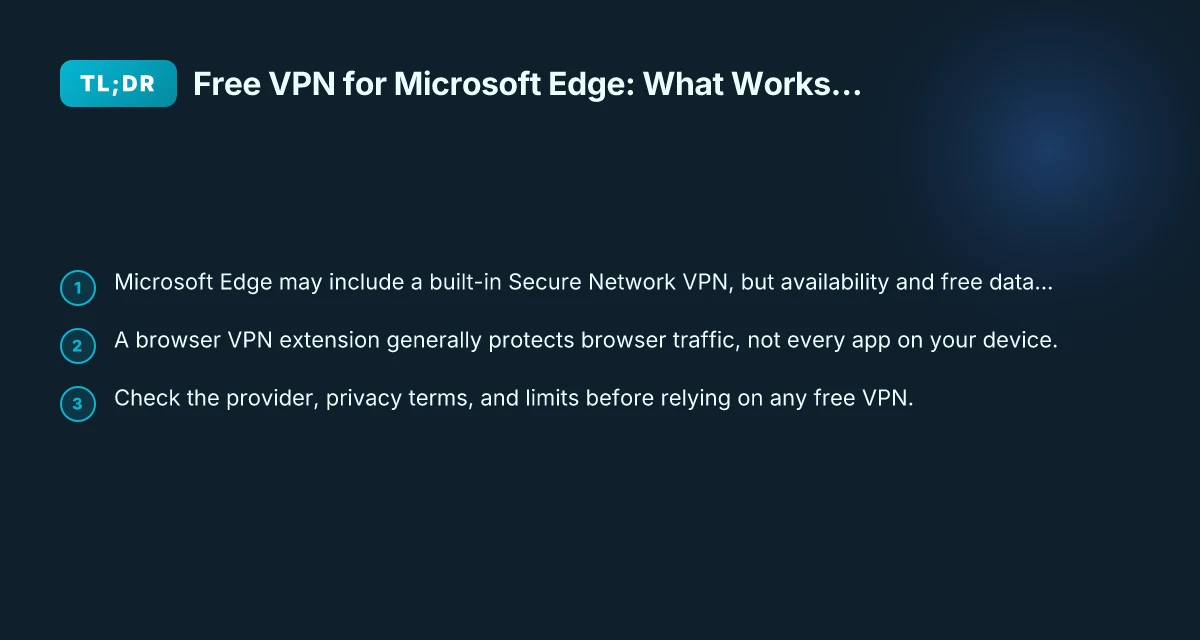
If you’re looking for a free VPN for Microsoft Edge, start by checking whether Microsoft Edge Secure Network is available in your browser. It is a built-in option that can route browser traffic through a VPN-style connection, though access may require signing in with a Microsoft account and the service may have a data limit. If it isn’t available or doesn’t suit your needs, you can consider a VPN extension from the Edge Add-ons store, but understand that an extension usually protects only Edge traffic, not your whole computer.
Editor's pick: NordVPN — fast, secure VPN — Strong encryption, a no-logs policy and apps for every device. 30-day money-back guarantee. Get NordVPN →
Compare Edge’s built-in Secure Network with a VPN extension
| Feature | Secure Network | VPN extension |
|---|---|---|
| Where it works | Microsoft Edge | Edge browser |
| Setup | Enable in Edge settings | Install from Edge Add-ons |
| Protects browser traffic | Yes | Yes |
| Protects other apps | No | No |
| Requires an account | May require sign-in | Depends on provider |
| Free access | Availability may vary | Depends on provider |
| Server choice | Limited or not shown | Depends on provider |
| Best suited for | Basic browser protection | More VPN features |
Compiled November 2026; check the provider's site for current details.
| VPN | Obfuscation | From / month | Plan | Free plan | Refund | Alipay | UnionPay | Crypto | Website opens in China | Trustpilot | |
|---|---|---|---|---|---|---|---|---|---|---|---|
 ZoogVPN | Turn on manually Shadow | $2.49/mo | 27 months: $59.99 | Yes | 7 days | ✓ | ✓ | ✓ | ✓ | Official site blocked; our special link opens (4.4 s) | 4.2/5 (195 reviews) |
 NordVPN | Turn on manually Obfuscated Servers / NordWhisper | $3.49/mo | 27 months: $94.23 | No | 30 days | ? | ✗ | ✓ | ✓ | ✗ Blocked | 4.2/5 (51,628 reviews) |
 ExpressVPN | ✓ On by default all servers | $3.00/mo | 28 months: $84 | No | 30 days | ✗ | ✗ | ✓ | ✗ | ✗ Blocked | 4.4/5 (29,706 reviews) |
 Surfshark | ✓ On by default Camouflage, with OpenVPN | See site | See site | No | 30 days | ✗ | ✗ | ✗ | ✓ | ✗ Blocked | 4.3/5 (31,823 reviews) |
 Proton VPN | Turn on manually Stealth, free plan too | $2.99/mo | 12 months: $35.88 | Yes | 30 days | ✗ | ✗ | ✗ | ✓ | ✗ Blocked | 2.1/5 (1,040 reviews) |
 Astrill VPN | Turn on manually StealthVPN / OpenWeb | $12.50/mo | 24 months: $300 | No | See site | ✗ | ✗ | ✗ | ✓ | ✗ Blocked | 1.3/5 (110 reviews) |
 Private Internet Access | Turn on manually Shadowsocks, OpenVPN only | $2.03/mo | 40 months: $81.2 | No | 30 days | ✗ | ✗ | ✗ | ✗ | ✗ Blocked | 4.2/5 (11,033 reviews) |
 CyberGhost | Turn on manually selected servers | $2.19/mo | 28 months: $61.32 | No | 45 days | ✗ | ✗ | ✗ | ✓ | ✗ Blocked | 4.0/5 (24,178 reviews) |
 PureVPN | Turn on manually switch to OpenVPN | $1.69/mo | 60 months: $101.55 | No | 31 days | ? | ? | ✗ | ✓ | ✗ Blocked | 4.4/5 (17,994 reviews) |
 AdGuard VPN | ✓ On by default TrustTunnel | $2.99/mo | 24 months: $71.76 | Yes | 30 days | ✓ | ✗ | ✓ | ✓ | Official site blocked; our special link opens (3.7 s) | 4.3/5 (290 reviews) |
 Mullvad | Turn on manually QUIC / Shadowsocks / LWO | $5.61/mo | €5/mo | No | 14 days | ✗ | ✗ | ✗ | ✓ | ✗ Blocked | 3.2/5 (192 reviews) |
 Windscribe | Turn on manually Stealth / WStunnel | $5.75/mo | 12 months: $69 | Yes | See site | ✗ | ✗ | ✗ | ✓ | ✗ Blocked | 4.7/5 (13,355 reviews) |
 StrongVPN | Turn on manually Scramble, OpenVPN TCP | See site | See site | No | 30 days | ✓ | ✗ | ✗ | ✗ | ✗ Blocked | 4.4/5 (2,695 reviews) |
 LightXtreme 闪连 | Not listed | $7.08/mo | 12 months: $84.99 | Yes | 30 days | ✓ | ✓ | ✓ | ✓ | ✓ Yes (3.5 s) | No page |
Prices checked 2026-11-10 on each vendor's pricing page (cheapest long plan, USD). Check the vendor's checkout for the final price.
Obfuscation checked 2026-11-14 on each vendor's site and help center: "on by default" = nothing to set; "turn on manually" = switch protocol or mode in settings; "not listed" = the vendor describes no obfuscation.
Payment methods checked 2026-11-10 on each vendor's payment pages: all 14 take cards and PayPal; ✗ = not listed, ? = the vendor's own pages disagree.
China access: whether the official website opens from mainland China networks (tests the website only, not the VPN connection). Last checked 2026-11-18 01:02 Beijing time.
Trustpilot score and review count checked 2026-11-10.
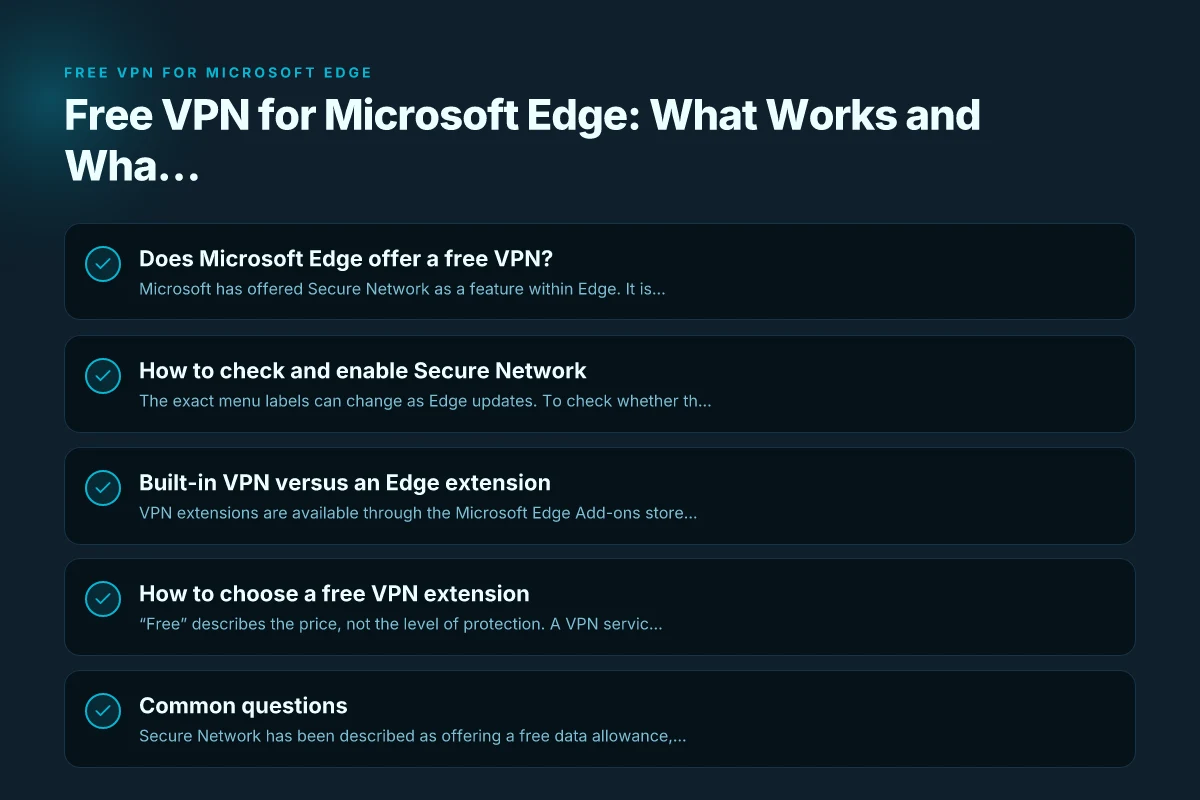
Does Microsoft Edge offer a free VPN?
Microsoft has offered Secure Network as a feature within Edge. It is designed to add protection to browser connections, particularly when you use public Wi-Fi or visit websites without a secure connection. Reports about the feature describe a free allowance of 5 GB, but availability and terms can change, so check what Edge shows in your region and version.
Secure Network is not necessarily a full-device VPN. A VPN app installed on Windows can protect traffic from multiple apps, while a browser feature or extension is generally limited to activity in that browser. Neither option should be treated as a guarantee of complete anonymity.
You may also need to sign in with a Microsoft account to use the built-in feature. If Secure Network does not appear in Edge, it may not be available to your account, region, or current browser version.
How to check and enable Secure Network
The exact menu labels can change as Edge updates. To check whether the feature is available: Edge Secure Network VPN Review: What It Protects, and What It Doesn’t
- Open Microsoft Edge.
- Select the three-dot menu, then open Settings.
- Look for Privacy, search, and services or search Settings for “Secure Network.”
- If the option is available, follow the prompts to turn it on and sign in if requested.
- Review any data allowance, eligibility details, and status indicators shown in Edge.
If you cannot find the option, update Edge and check again. If it is still missing, it may not be offered to you yet. Avoid downloading an unofficial program that claims to unlock a hidden Edge VPN.
Before browsing, confirm that Secure Network is active. Also check its data limit: a free allowance may be enough for occasional browsing, but could run out sooner if you stream video or download large files.
Check and enable Secure Network in Edge
| Step | What to do | What to look for | If it is missing |
|---|---|---|---|
| 1 | Open Microsoft Edge | Edge is up to date | Update Edge |
| 2 | Open Settings | Settings menu | Use the menu button |
| 3 | Find Privacy, search, and services | Secure Network option | Feature may not be available |
| 4 | Select Secure Network | Setup or sign-in prompt | Follow any on-screen instructions |
| 5 | Turn it on | Enabled status | Check account requirements |
| 6 | Visit a website | Connection indicator | Recheck the setting |
Compiled November 2026; check the provider's site for current details. FortiClient VPN Windows 11: Install, Set Up, and Troubleshoot
Built-in VPN versus an Edge extension
VPN extensions are available through the Microsoft Edge Add-ons store. Some advertise free service. For example, search results include Browsec VPN and FreeProxy VPN Extension. These listings are starting points for research, not proof that a service is suitable or that its current terms meet your needs.
| Option | What it may protect | What to check |
|---|---|---|
| Edge Secure Network | Browser traffic handled by Edge while the feature is active | Availability, sign-in requirements, data allowance, and service terms |
| VPN browser extension | Usually traffic routed through the extension in Edge | Provider identity, privacy policy, permissions, limits, and reviews |
| Windows VPN app | Potentially traffic from multiple apps on the device | Whether it is a reputable provider and what its free plan allows |
An extension can be convenient, but it is not the same as installing a system-wide VPN. Other browsers and apps may continue using your normal internet connection. Some extensions also request broad permissions, so read the permission list and privacy policy before installing one.
How to choose a free VPN extension
“Free” describes the price, not the level of protection. A VPN service needs to explain how it handles connection data and how it supports its service. Review the provider carefully before routing your browsing through it.
Look for: VPN for Edge: How to Choose and Use One
- A clear privacy policy: Check what data is collected, how long it is retained, and whether it is shared.
- A recognizable provider: Confirm that the listing and publisher match the company’s official website.
- Understandable limits: Look for restrictions on data, locations, speed, or features.
- Reasonable permissions: Be cautious if an extension requests access that does not seem necessary.
- Recent feedback: Reviews can reveal usability problems, but ratings alone do not establish privacy or security.
Do not assume that a VPN extension blocks every tracking method or makes you anonymous. Websites may still identify you through account sign-ins, cookies, browser settings, or other signals. A VPN primarily changes the network route and the IP address visible to the sites you visit.
Common questions
Is Edge’s VPN completely free?
Secure Network has been described as offering a free data allowance, including a 5 GB allowance in some reports. Check the current terms in Edge, because availability and limits can change. A free extension may also impose its own restrictions.
Does a VPN extension protect all Windows traffic?
Usually, no. An Edge extension is generally for browser traffic. If you want protection for other apps as well, look into a reputable VPN application for Windows and confirm what its plan covers.
What if Secure Network is missing?
Update Edge and search Settings for “Secure Network.” If it still does not appear, the feature may not be available to your account or region. You can use another reputable option, but verify its publisher and privacy terms before installing it. Windows VPN: How to Set One Up and Choose a Provider
Evaluate a free VPN extension for Edge
| What to check | Good sign | Caution |
|---|---|---|
| Provider identity | Clear company and contact details | Unknown operator |
| Privacy policy | Explains data handling | Vague or missing policy |
| Permissions | Requests only what it needs | Broad, unexplained access |
| Free plan limits | Limits are stated clearly | Limits are undisclosed |
| Server locations | Locations are listed | No server information |
| Logging practices | Clear statement about logs | Unclear data retention |
| Reviews and updates | Recent activity and credible reviews | Few details or stale updates |
| Support | Help or contact options | No way to get assistance |
Compiled November 2026; check the provider's site for current details.
Recommendation
For occasional browsing, first check whether Edge Secure Network is available and review its current data allowance and sign-in requirements. If you choose an extension, install it only from the official Edge Add-ons store and evaluate the provider rather than relying on the word “free.” For protection beyond Edge, use a trusted Windows VPN app instead of assuming a browser extension covers your entire device.