Clash for iOS: What It Is and How to Choose an App
Learn what Clash for iOS means, which clients appear in current listings, and what to check before installing or connecting.
If you are looking for Clash for iOS, you are looking for an iPhone or iPad app that can use Clash-compatible proxy configurations. One option in the current search results is Clash Mi, an App Store app described as a rule-based network proxy tool. It requires iOS 15 or later on iPhone and iPadOS 15 or later on iPad. Before choosing any client, confirm that it supports your configuration and is available through a trustworthy source.
iOS options mentioned in the article
| Option | What it is | iOS availability | Key consideration |
|---|---|---|---|
| Stash | Clash-compatible iOS client | Check current App Store listing | Verify features and pricing |
| Shadowrocket | Network proxy client | Check current App Store listing | Not a Clash-branded app |
| Surge | Network tool with proxy features | Check current App Store listing | Check whether it fits your needs |
| sing-box clients | Apps built around sing-box | Varies by app | Not all are Clash clients |
| TestFlight builds | Beta app distribution | Invitation or availability may vary | Can be temporary |
| Desktop Clash clients | Apps for desktop systems | Not an iPhone or iPad option | Do not assume iOS support |
| App Store search results | Listings that change over time | Available on iOS | Confirm developer and details |
Compiled November 2026; check the provider's site for current details.
What “Clash for iOS” means
“Clash” can refer to software built around the Clash ecosystem, while “Clash for iOS” is often used as a general search term for an Apple mobile client. It does not necessarily identify one official app. Search results include App Store listings, project pages, and download pages, so check the developer and product details rather than relying on the name alone.
A client typically provides an interface for importing a configuration, selecting rules or profiles, and managing a connection. The configuration determines how traffic is handled. A client and a configuration need to be compatible. Installing an app by itself does not provide a working setup.
Current iOS options in search results
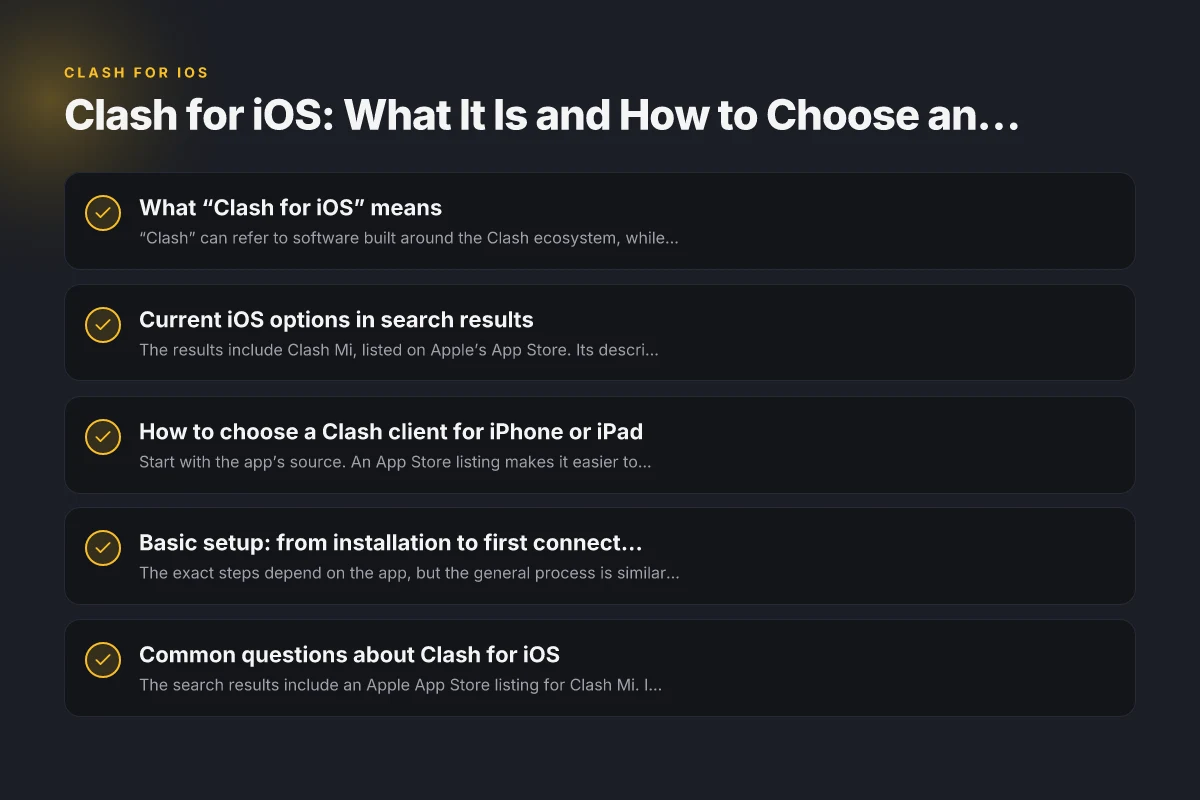
The results include Clash Mi, listed on Apple’s App Store. Its description calls it a simple, rule-based network proxy tool. The listing states that it requires iOS 15 or later and iPadOS 15 or later.
Another result is Clash Mi from KaringX on GitHub, described as a cross-platform Clash Mihomo client for iOS, macOS, Android, Windows, and Linux. The project says it includes the Mihomo core and supports recommended configurations from MetaCubeX. Check the project’s current documentation for installation and compatibility details. VPN Free: How to Choose a Free VPN Safely
Search results also show a Clash iOS download page and a GitHub result titled “Clash for iOS.” A listing or repository name alone does not establish that an app is official, maintained, or suitable for your device. Verify ownership, release information, and source before installing.
| Option in current results | What the result says | What to verify |
|---|---|---|
| Clash Mi on the App Store | Rule-based network proxy tool; requires iOS 15 or later and iPadOS 15 or later | Developer details, regional availability, and supported configuration formats |
| KaringX/Clash Mi on GitHub | Cross-platform client with the Mihomo core | Current installation instructions, releases, and configuration compatibility |
| Clash iOS download page | Provides a page for an iOS download | Whether the source is trustworthy and the app is available for your device |
| Clash for iOS GitHub result | Repository titled “Clash for iOS” | Whether the project is active and whether its source and release match your needs |
How to choose a Clash client for iPhone or iPad
| Check | What to look for | Why it matters | Before installing |
|---|---|---|---|
| Compatibility | Support for your iOS version | The app must run on your device | Check the listing |
| Configuration | Support for your configuration format | Determines whether your profile can be used | Confirm format support |
| Updates | Recent maintenance and updates | Helps assess current compatibility | Review update history |
| Trust | Identifiable developer and privacy details | Helps evaluate the app | Check developer information |
| Cost | Price, subscription, or in-app purchases | Affects ongoing use | Read pricing details |
| Permissions | Requested access and privacy practices | Helps you understand data handling | Review privacy disclosures |
| Support | Documentation or help options | Useful when setup fails | Check available support |
Compiled November 2026; check the provider's site for current details.
How to choose a Clash client for iPhone or iPad
Start with the app’s source. An App Store listing makes it easier to review the developer, requirements, and privacy information in one place. For software distributed through a project page, use the project’s own documentation and release links, and avoid unfamiliar download mirrors. VPN Extension for Edge: How to Choose and Use One
Next, make sure the client supports the configuration you intend to use. The term “Clash-compatible” can cover different cores and configuration features. If your configuration relies on Mihomo-specific options, confirm that the selected client supports Mihomo rather than assuming every app will handle it.
Check these points before installing:
- Device requirements: Confirm your iOS or iPadOS version meets the app’s stated minimum.
- Configuration support: Check the required core and configuration format.
- Maintenance: Look for recent documentation or releases and clear support information.
- Availability: App Store listings and features may vary by region.
- Privacy and permissions: Review the app’s privacy details and the permissions it requests.
Basic setup: from installation to first connection
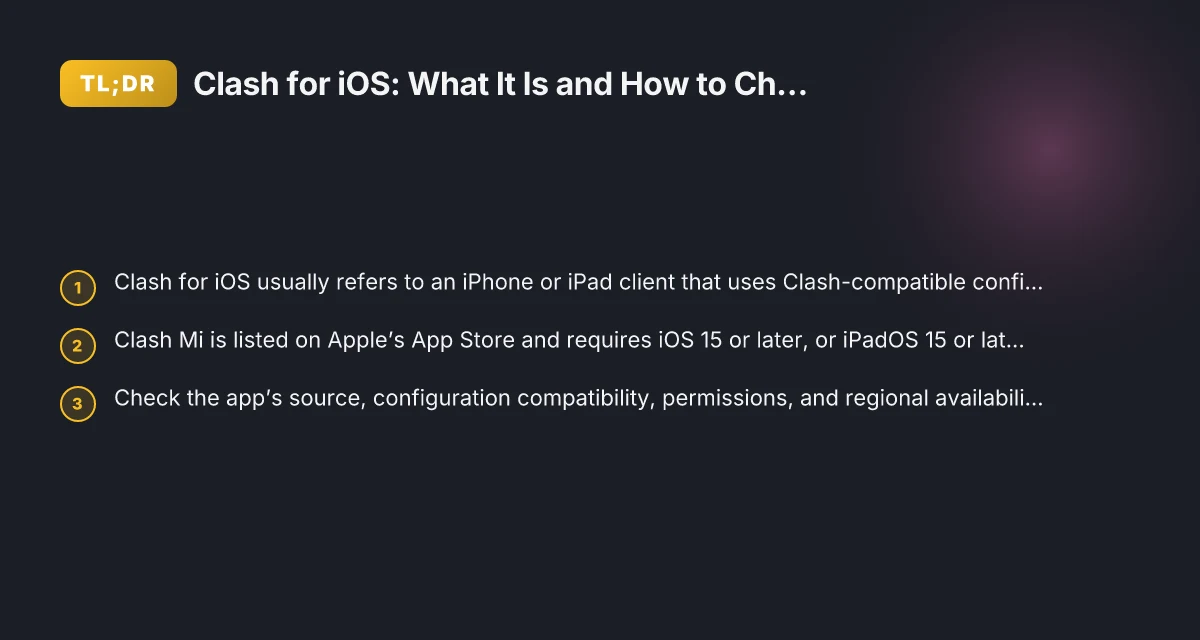
The exact steps depend on the app, but the general process is similar. Install the client from its listed source, then use its instructions to add a configuration or profile. Configurations may be supplied by a service or created by the user. The client does not necessarily include one.
A typical setup involves: Cj.cj.net VPN: What the Site Is and How to Find the Right VPN Link
- Install a client that supports your device and configuration.
- Add the configuration using the method documented by the app.
- Review the available profiles, rules, or nodes.
- Select the appropriate option and start the connection through the app.
- Check the app’s status and test the services you expect to use.
Only import configurations from a source you trust. A profile can affect how network traffic is routed, so treat subscription links and configuration files as sensitive. If the app cannot import a profile or connect, check the client’s documentation first. An incompatible format, outdated configuration, or unavailable service could be the cause.
Basic setup and first-connection checklist
| Step | Action | Check before moving on | If it does not work |
|---|---|---|---|
| 1. Choose | Select an iOS client | Confirm it is available for your device | Recheck the current listing |
| 2. Install | Install from a trusted source | Confirm the developer | Avoid unknown downloads |
| 3. Add config | Import or enter your configuration | Confirm the format is supported | Check the client’s instructions |
| 4. Review | Inspect the imported profile | Confirm its settings look complete | Ask the configuration provider |
| 5. Connect | Start the client connection | Approve iOS prompts when needed | Check app and iOS settings |
| 6. Test | Try the connection with an app or site | Confirm traffic behaves as expected | Recheck the profile and connection |
| 7. Troubleshoot | Review errors and update status | Confirm the app is current | Consult app documentation |
| 8. Protect | Keep configuration details private | Avoid sharing sensitive credentials | Replace exposed details if needed |
Compiled November 2026; check the provider's site for current details.
Common questions about Clash for iOS
Is Clash Mi available for iPhone?
The search results include an Apple App Store listing for Clash Mi. It states that the app requires iOS 15 or later on iPhone. Availability can depend on your App Store region, so check the listing on your device. OpenVPN Connect: Download, Set Up, and Use the Official VPN Client
Is Clash Mi the same as every app called Clash?
No. Similar names do not guarantee that apps share a developer, core, features, or support. Compare the listing or repository, developer information, and documentation before choosing.
Does installing the client provide a configuration?
Not necessarily. A client is the app used to manage a configuration. The configuration itself may need to be supplied or created separately. Follow the selected app’s instructions and use a source you trust.
Should I download an app from a third-party page?
Prefer the App Store or the project’s verified distribution instructions. Before using another source, confirm that it is linked by the developer and that the file and installation method are appropriate for your device.
Recommendation
For most people searching for Clash for iOS, begin by reviewing the Clash Mi App Store listing, its iOS requirements, and whether it supports your configuration. If you need Mihomo-specific features, compare those requirements with the KaringX/Clash Mi project documentation. Choose the client whose source and compatibility you can verify, and install it only from a trusted channel. VPN PES: How to Use a VPN for eFootball and What to Expect